
Install Tesserae
Most stores are live on Tesserae within an afternoon: pick a preset, set your brand basics, fill the home page, then publish.
Add the theme
In your Shopify admin go to Online Store → Themes and add Tesserae from the Theme Store. It appears under Theme library, unpublished, so your live store is unaffected.

Set your brand basics
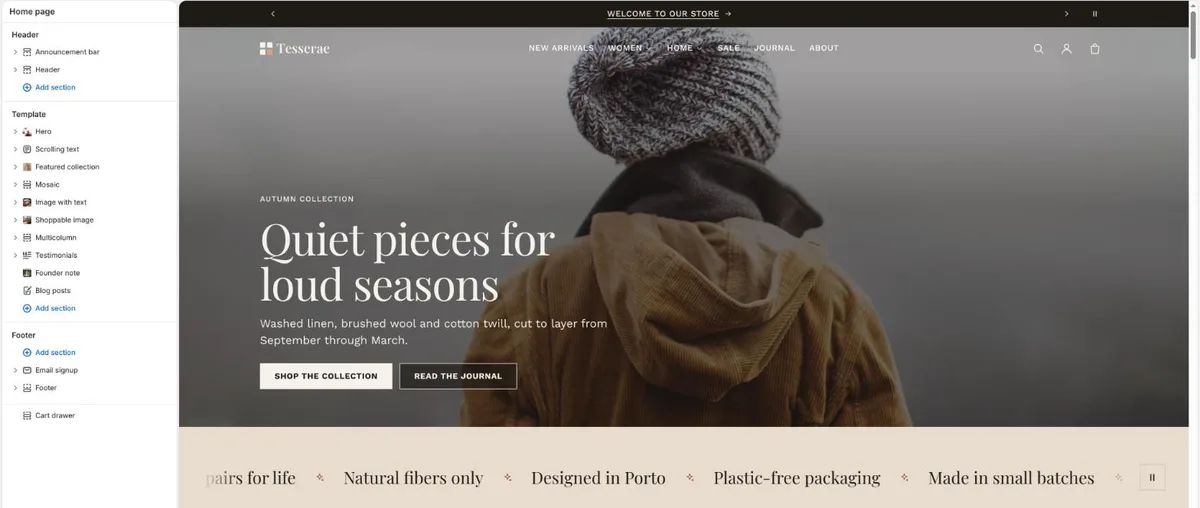
Click Edit theme to open the theme editor. The sections of the page are listed on the left and the page itself on the right; the gear icon opens Theme settings. Fill Logo and favicon, then adjust Colors (the palette) and Typography. These three groups do most of the visual work.
Connect your content
In the header, pick your main menu. On the home page, point Featured collection, Collection list and Blog posts at your own collections and blog, and replace the preset images in Hero, Mosaic and Image with text.
Check product and collection pages
Open a product from the page selector at the top of the editor. The default product template already includes the variant picker, buy buttons, collapsible tabs and recommendations.
Preview on mobile
Use the device toggle at the top of the editor. Tesserae is designed mobile-first, but check your hero image crops and menu labels.
Publish
In Online Store → Themes, click Publish next to Tesserae. Your previous theme stays in the library in case you want to roll back. To try changes safely, duplicate the theme first (Actions → Duplicate) and edit the copy.